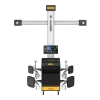



3D Wheel Alignment on a Mobile Workstation with Drawer Storage
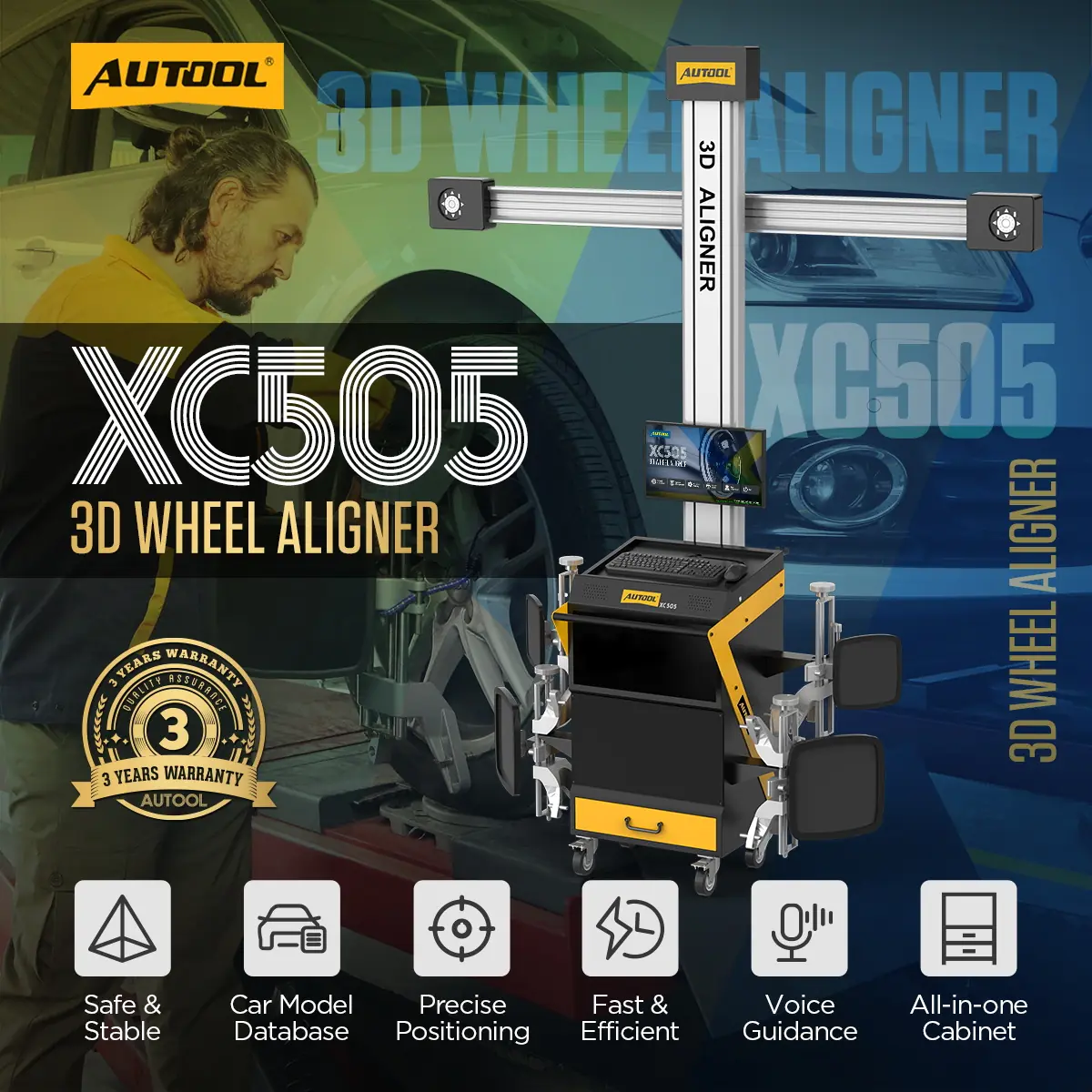
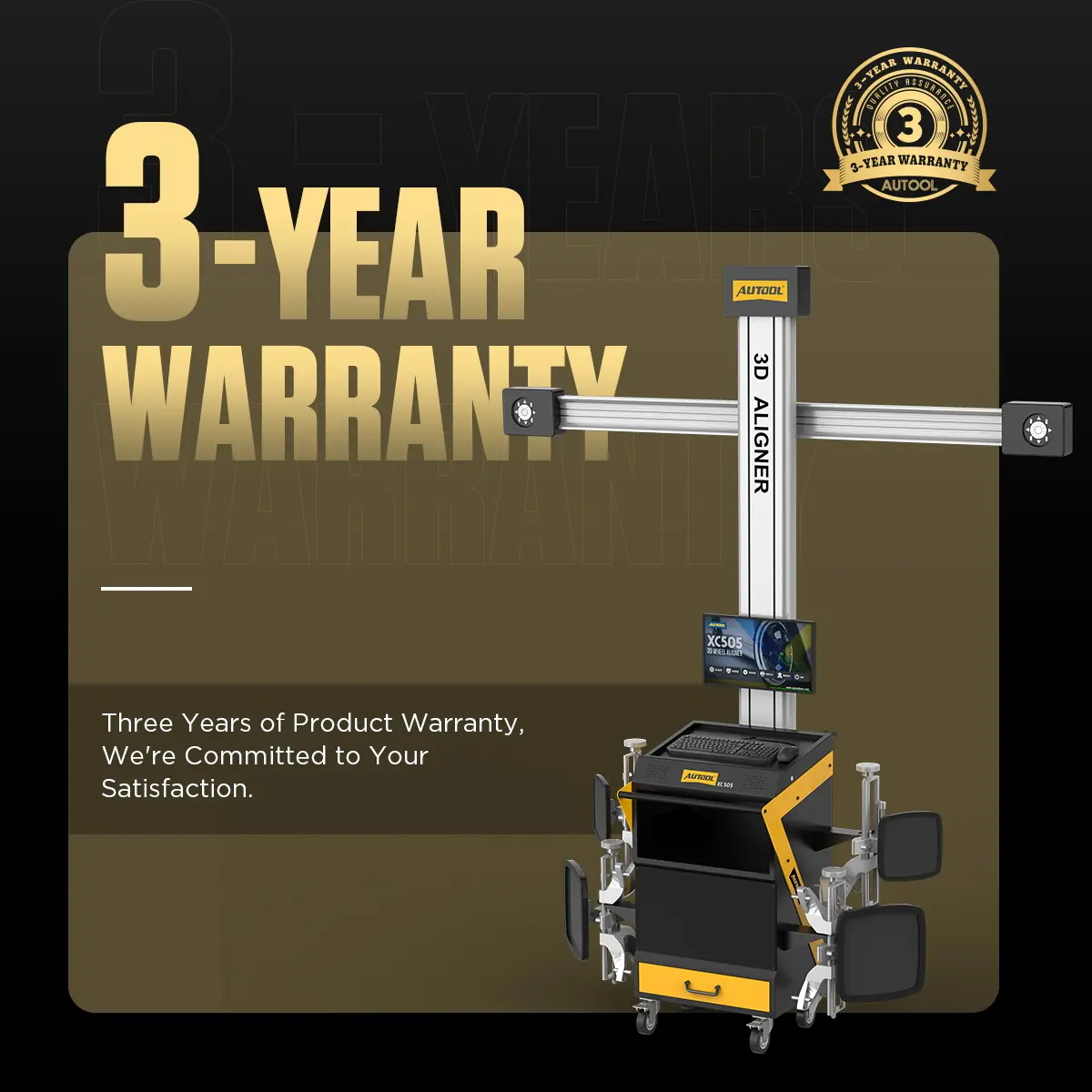
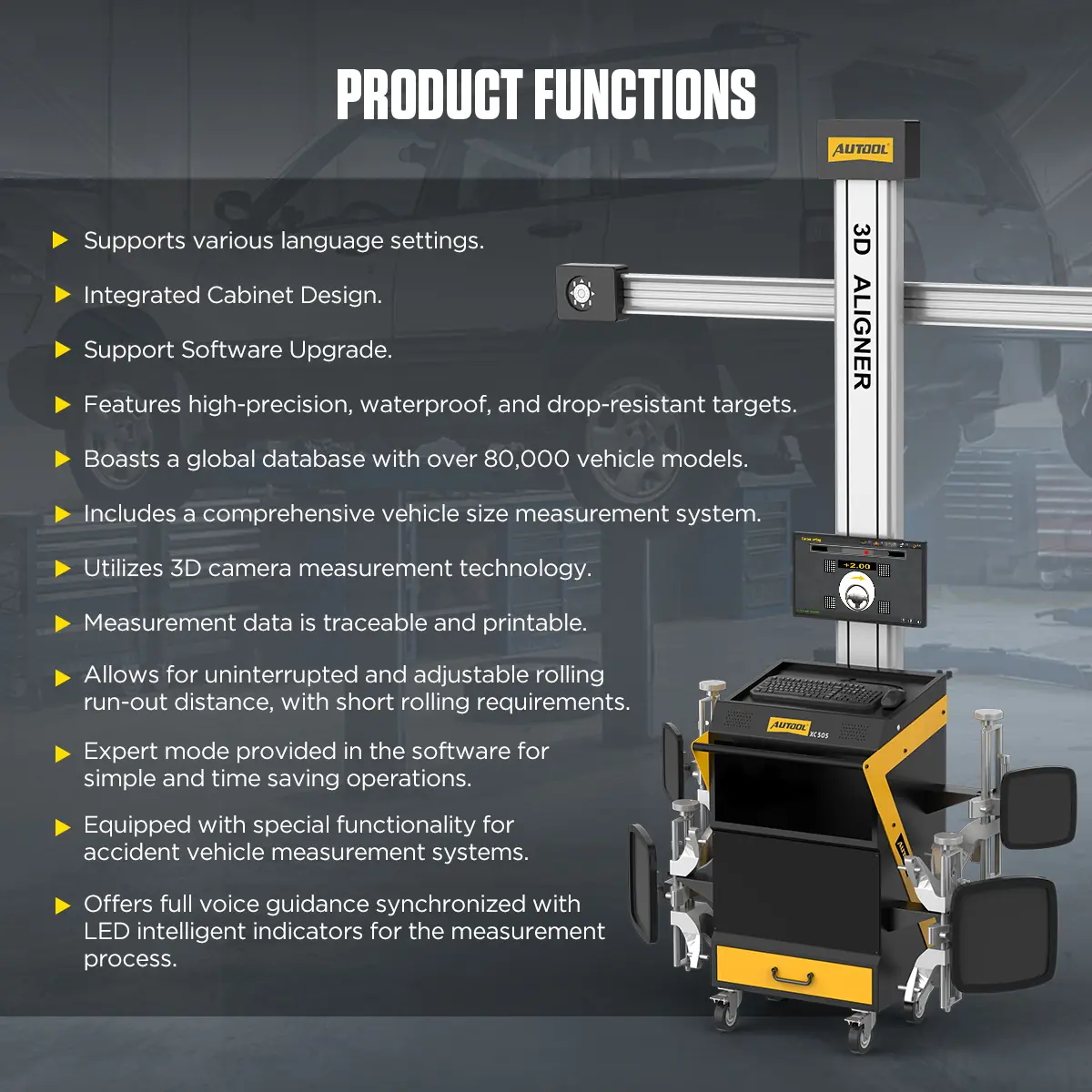
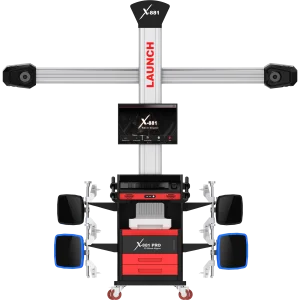
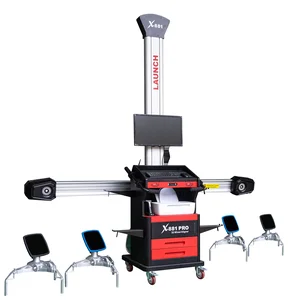
The XC505 measures wheel angles and body dimensions with fixed 3D cameras and passive targets, guiding the technician with voice prompts and LED indicators from vehicle selection to the final report. Reports print through an external printer. A qualified, level alignment bay is required.
- 3D Camera Measurement
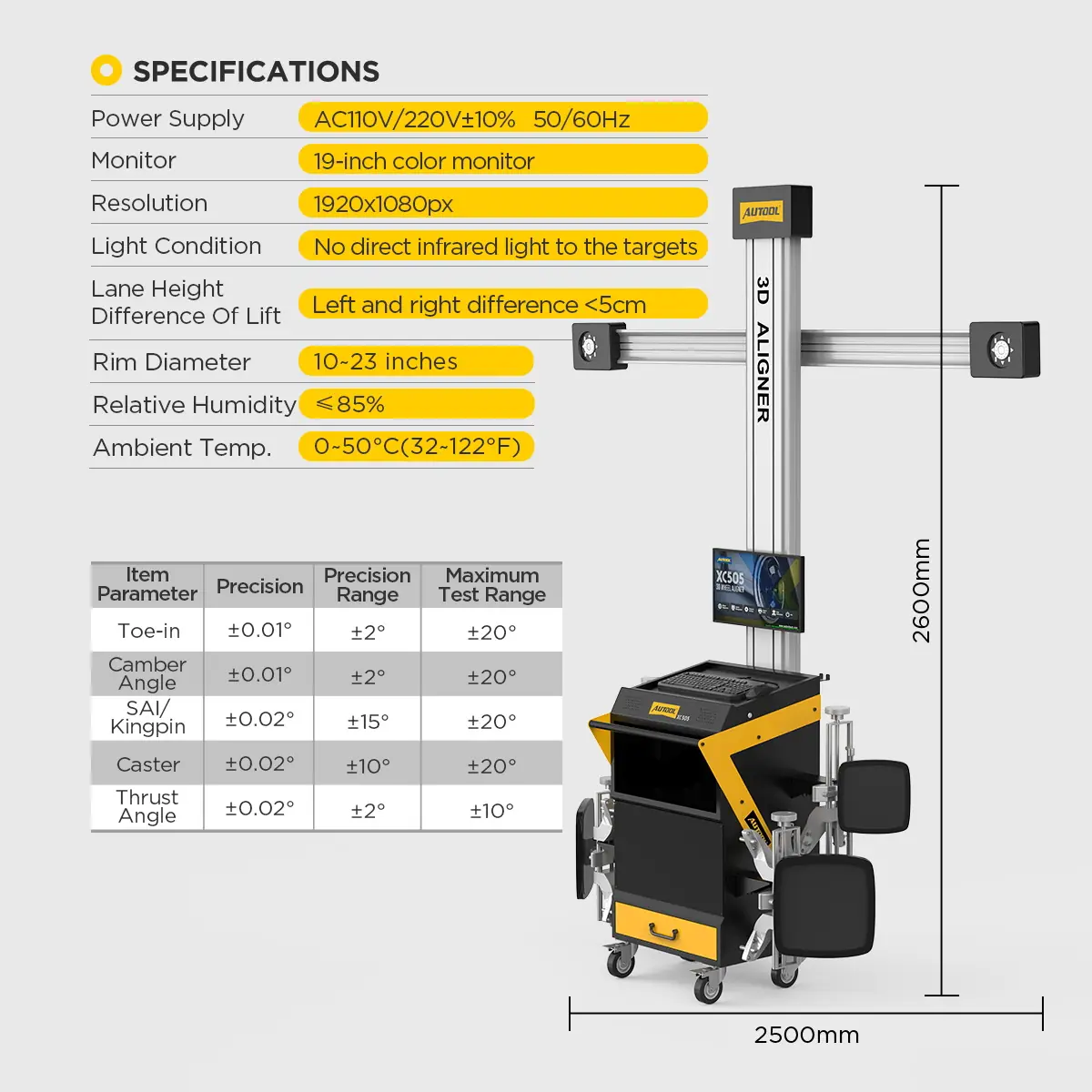
- Toe/Camber ±0.01°
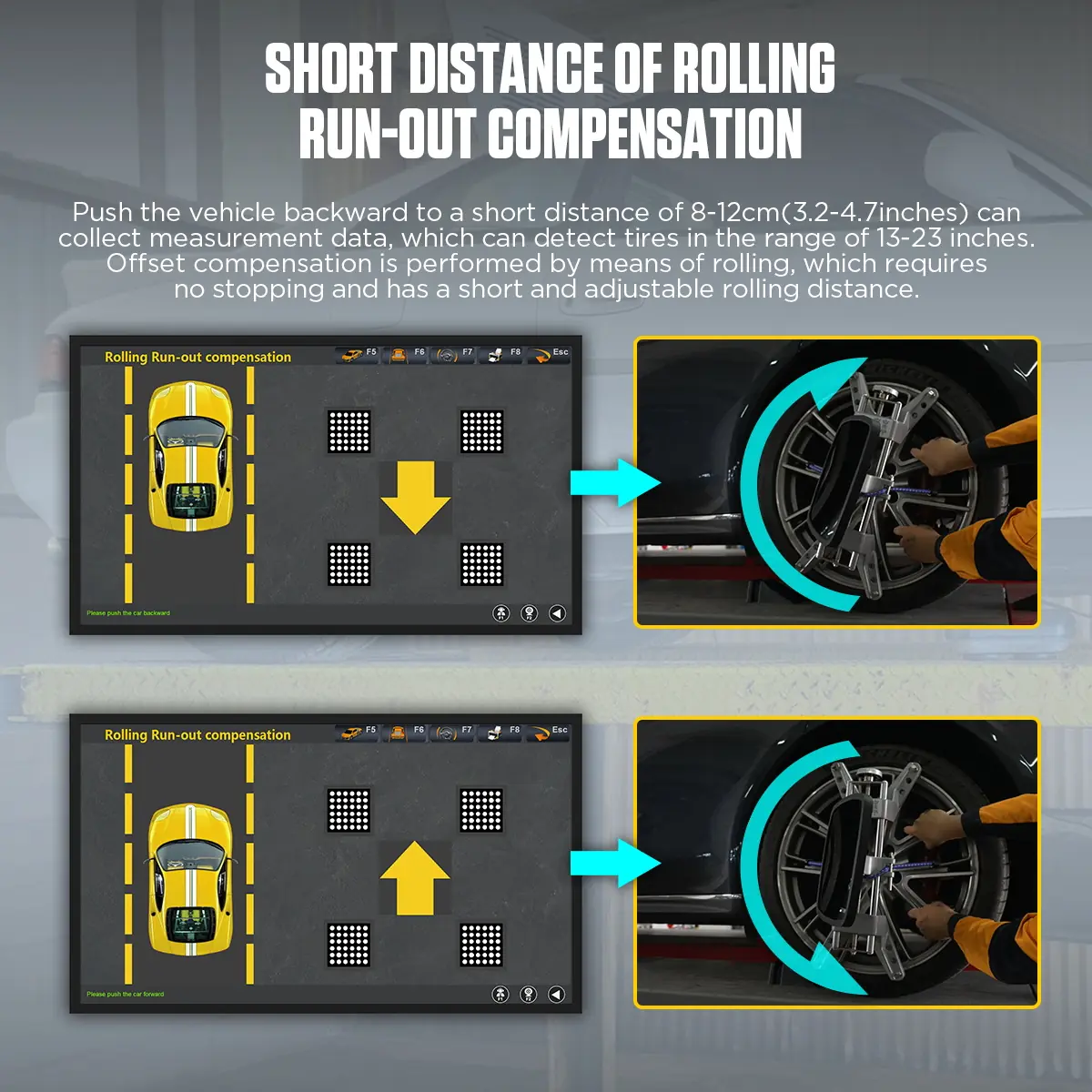
- 8–12 cm Rolling Compensation
- Mobile Cabinet + Drawer
- 80,000+ Vehicle Models
Key Features
-
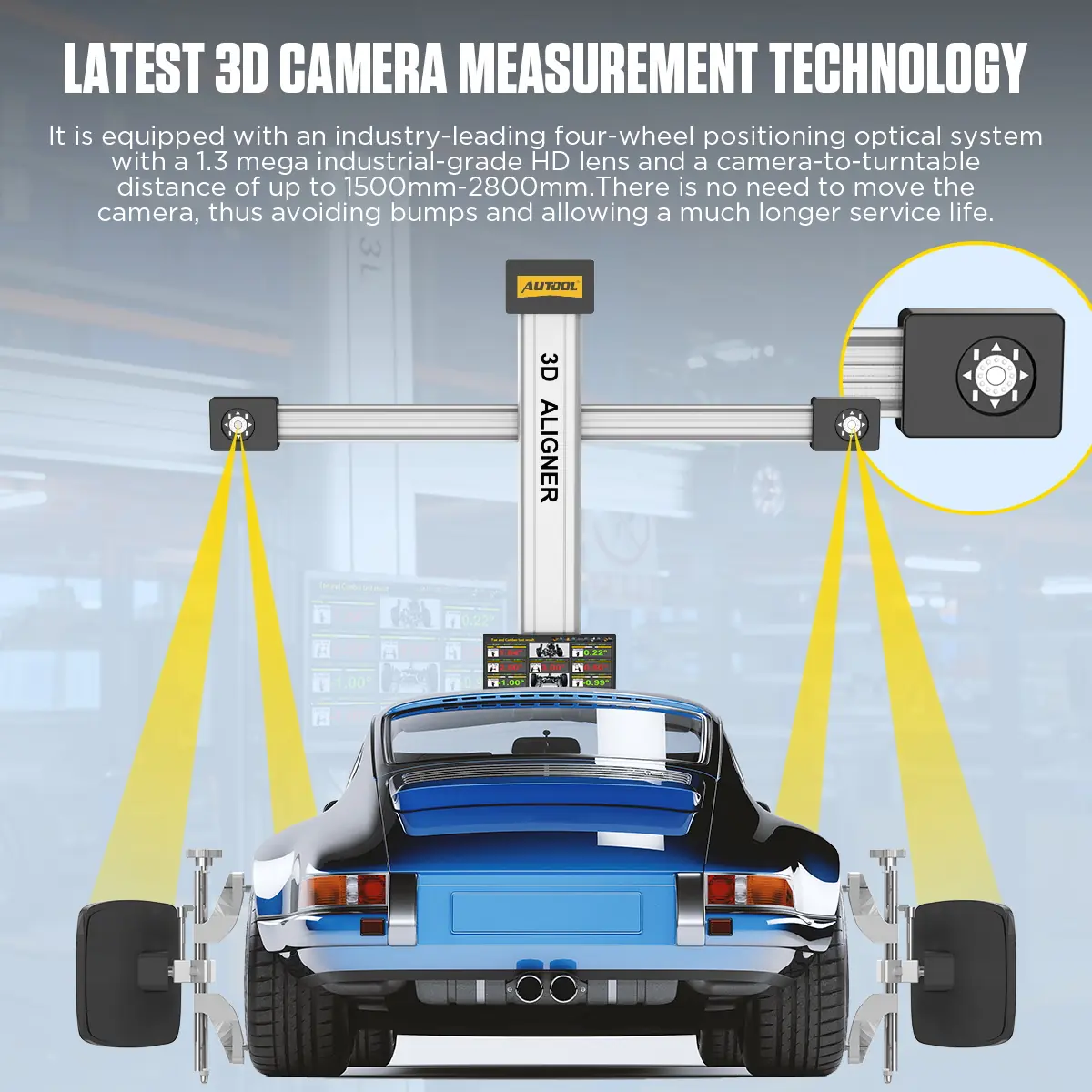
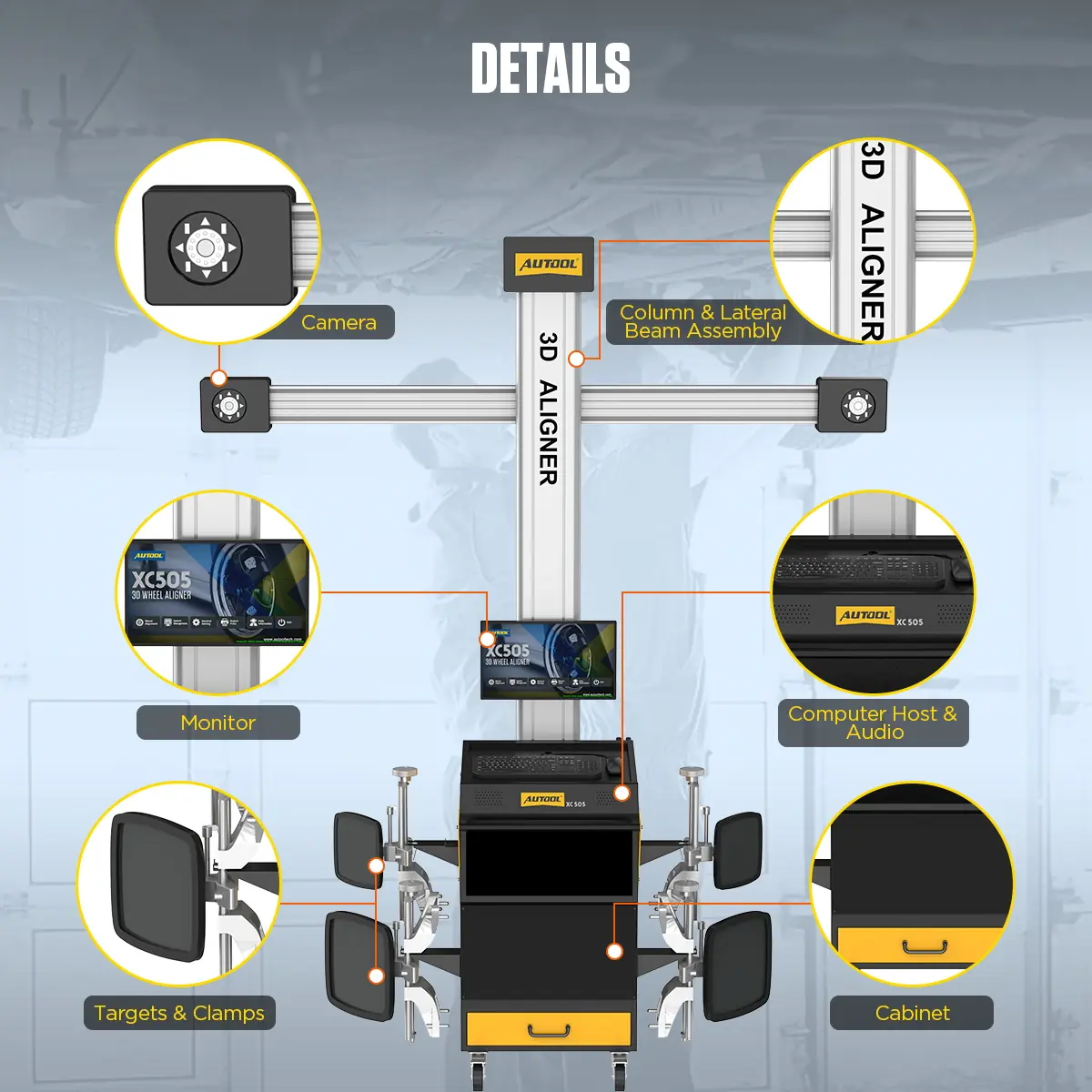
Fixed 3D Cameras
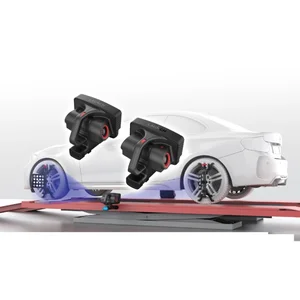
Industrial HD lenses measure from a fixed position, so the cameras do not need to be moved during normal use.
-
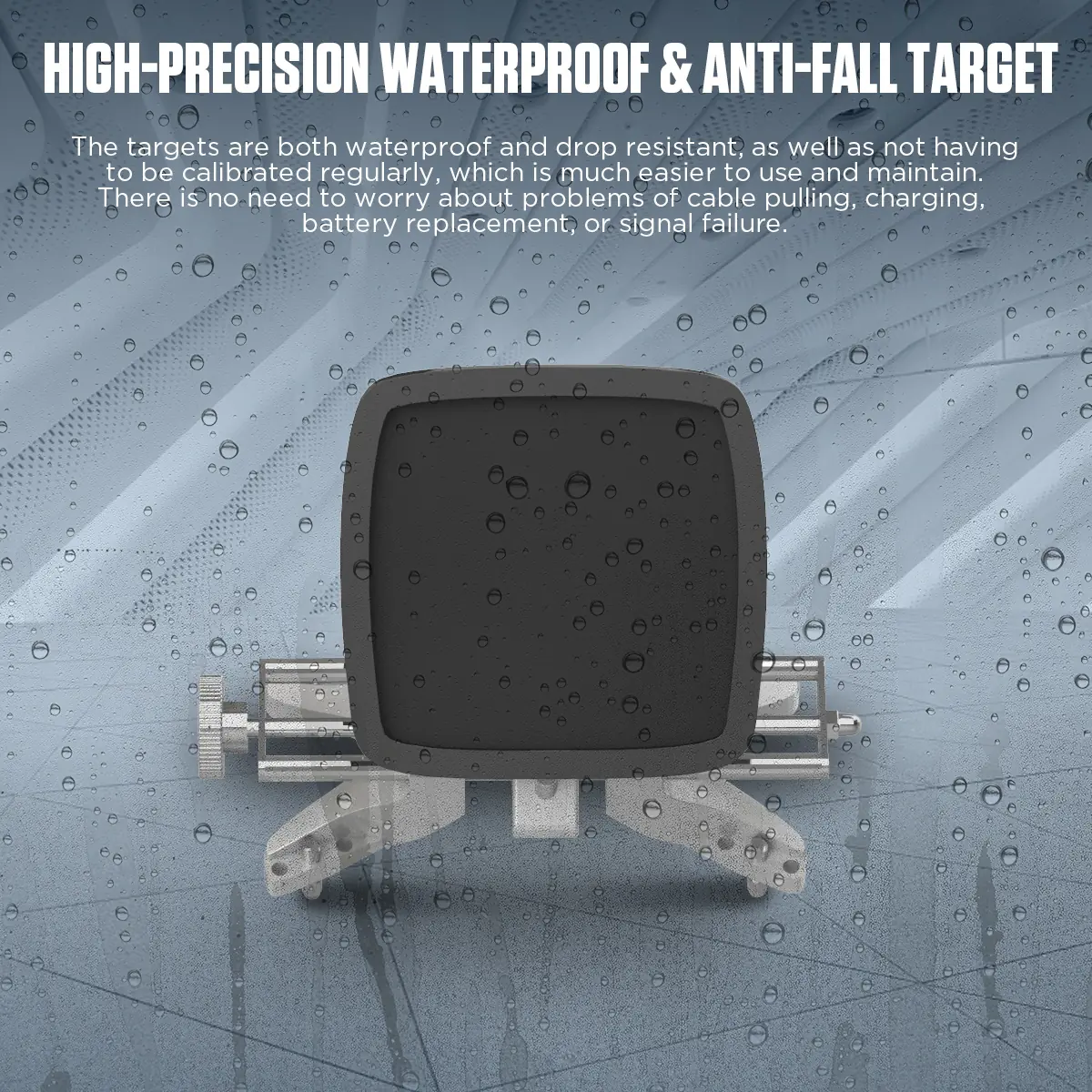
Maintenance-Free Targets
Waterproof, drop-resistant targets need no cables, charging, batteries or regular signal-device maintenance.
-
Wheel and Body Geometry
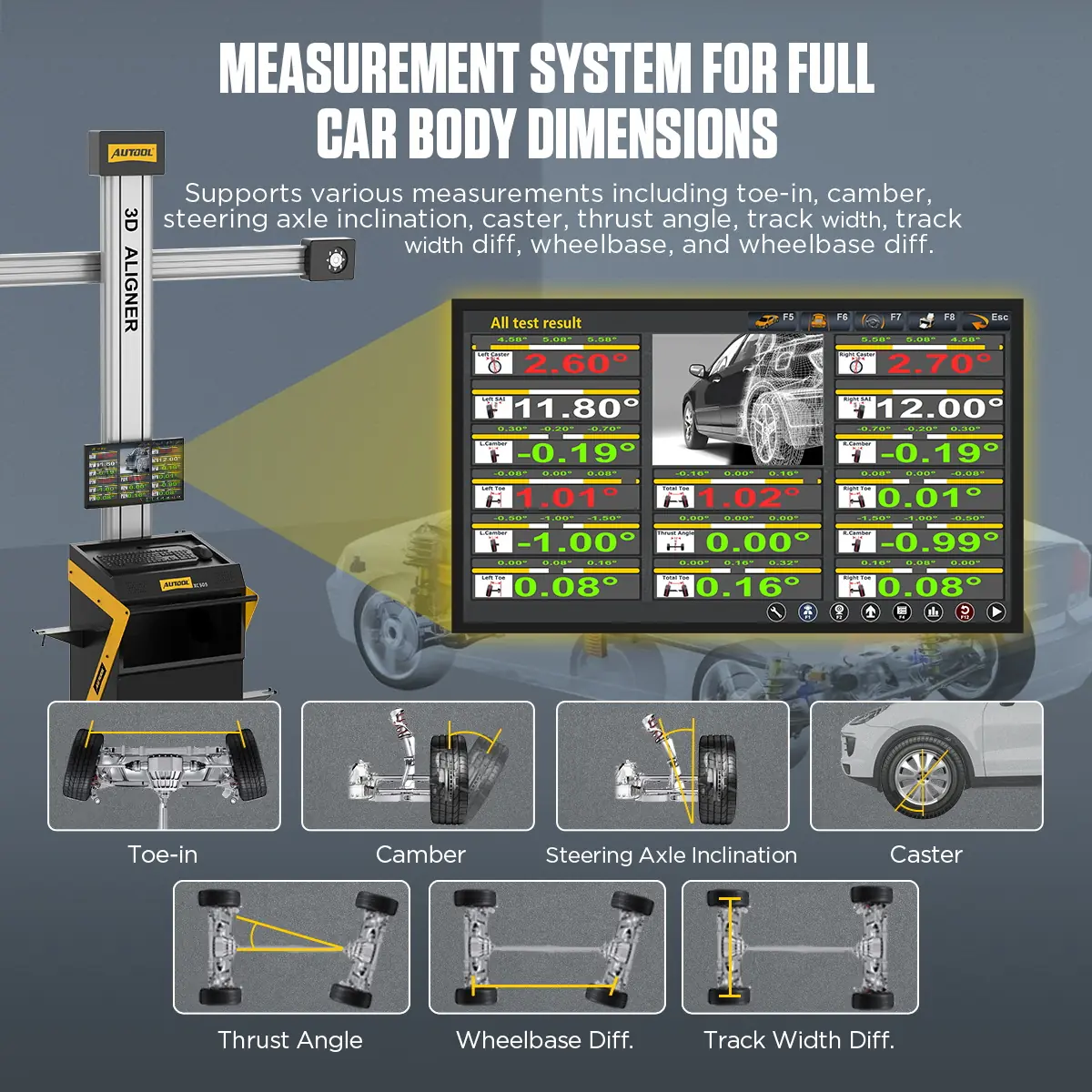
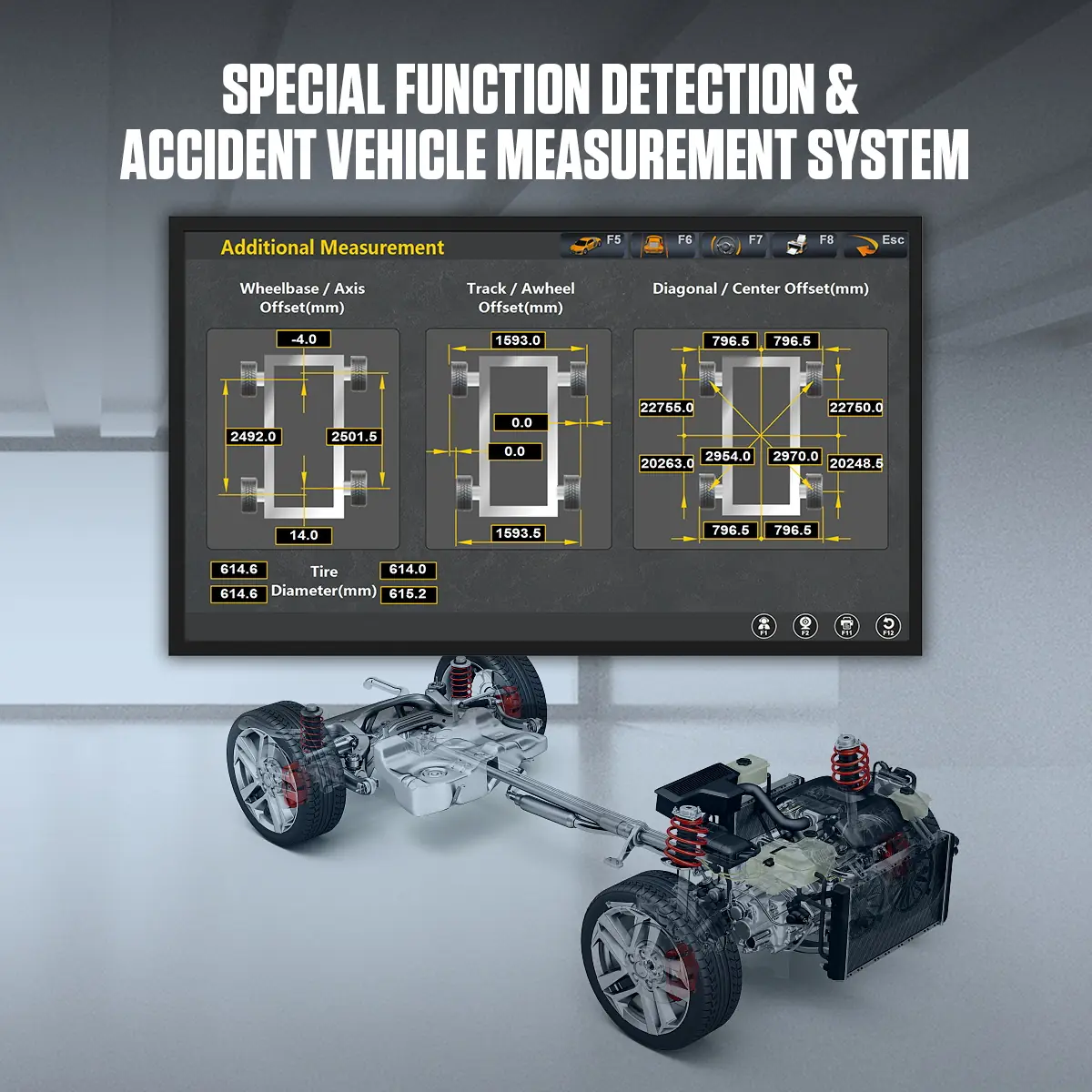
Toe-in, camber, steering axle inclination, caster, thrust angle, wheelbase, track width and their left-right differences, plus diagonal body measurement.
-
Searchable Vehicle Database
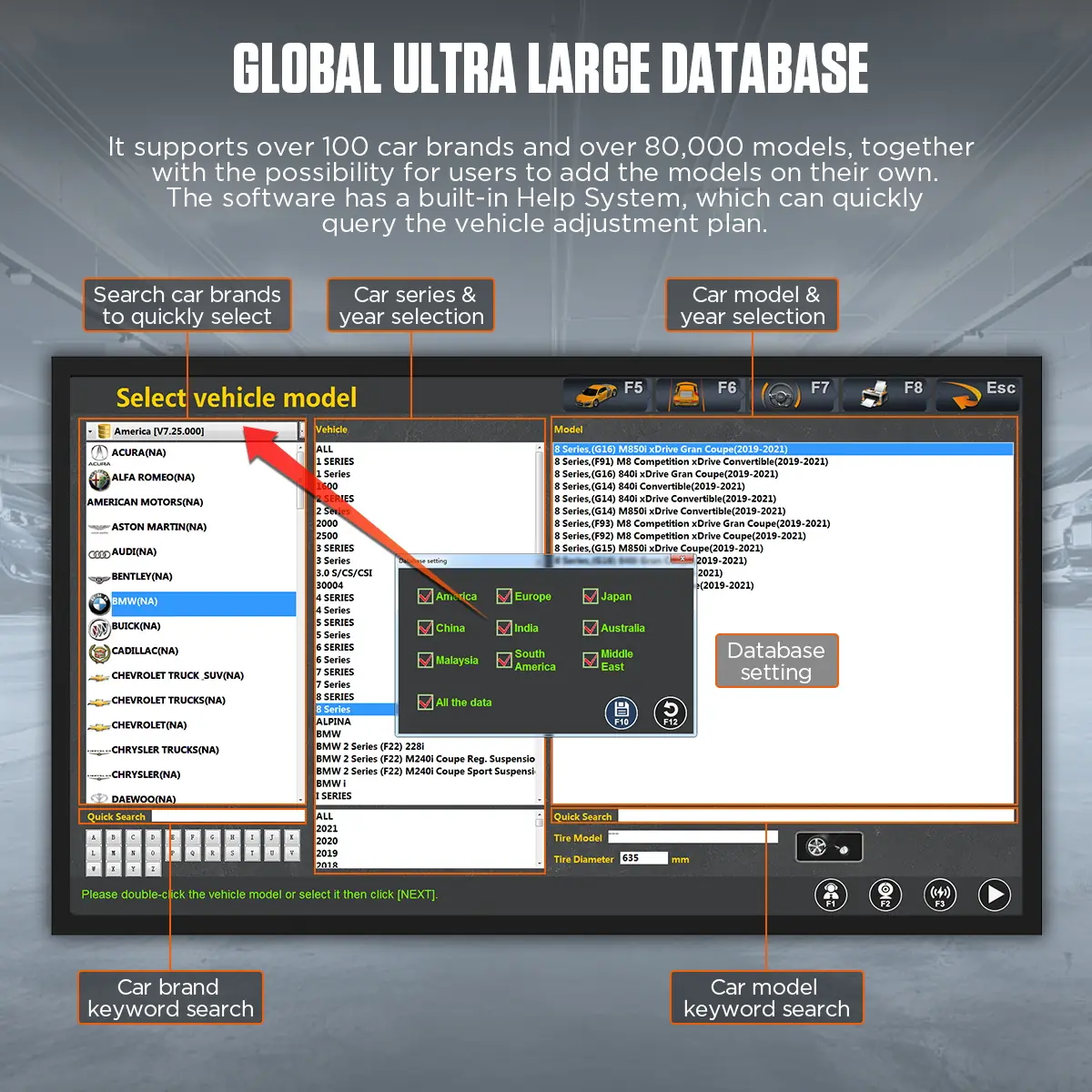
Find data by brand, series, model and year, add custom models, and look up adjustment plans in the built-in help system.
-
Voice and LED Guidance
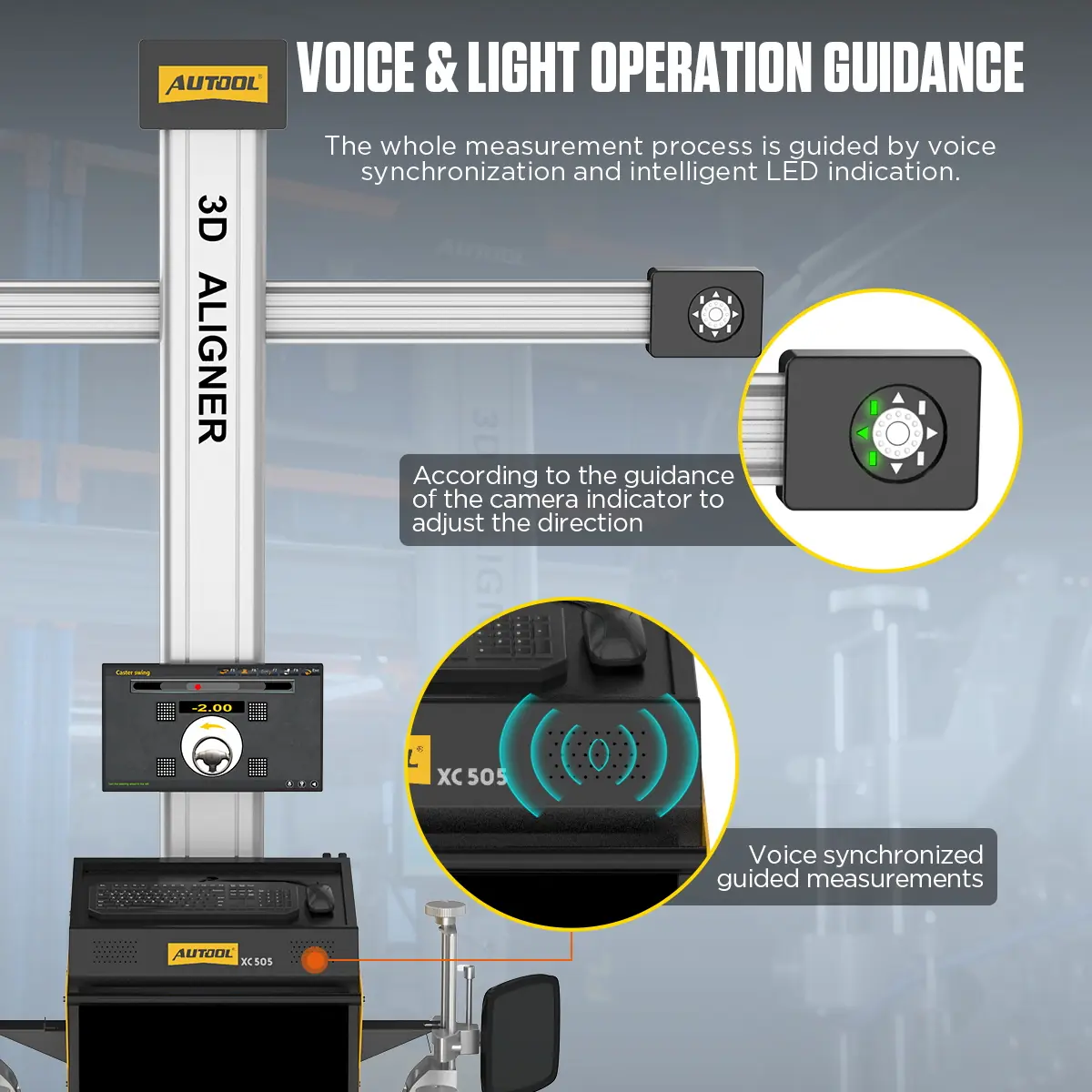
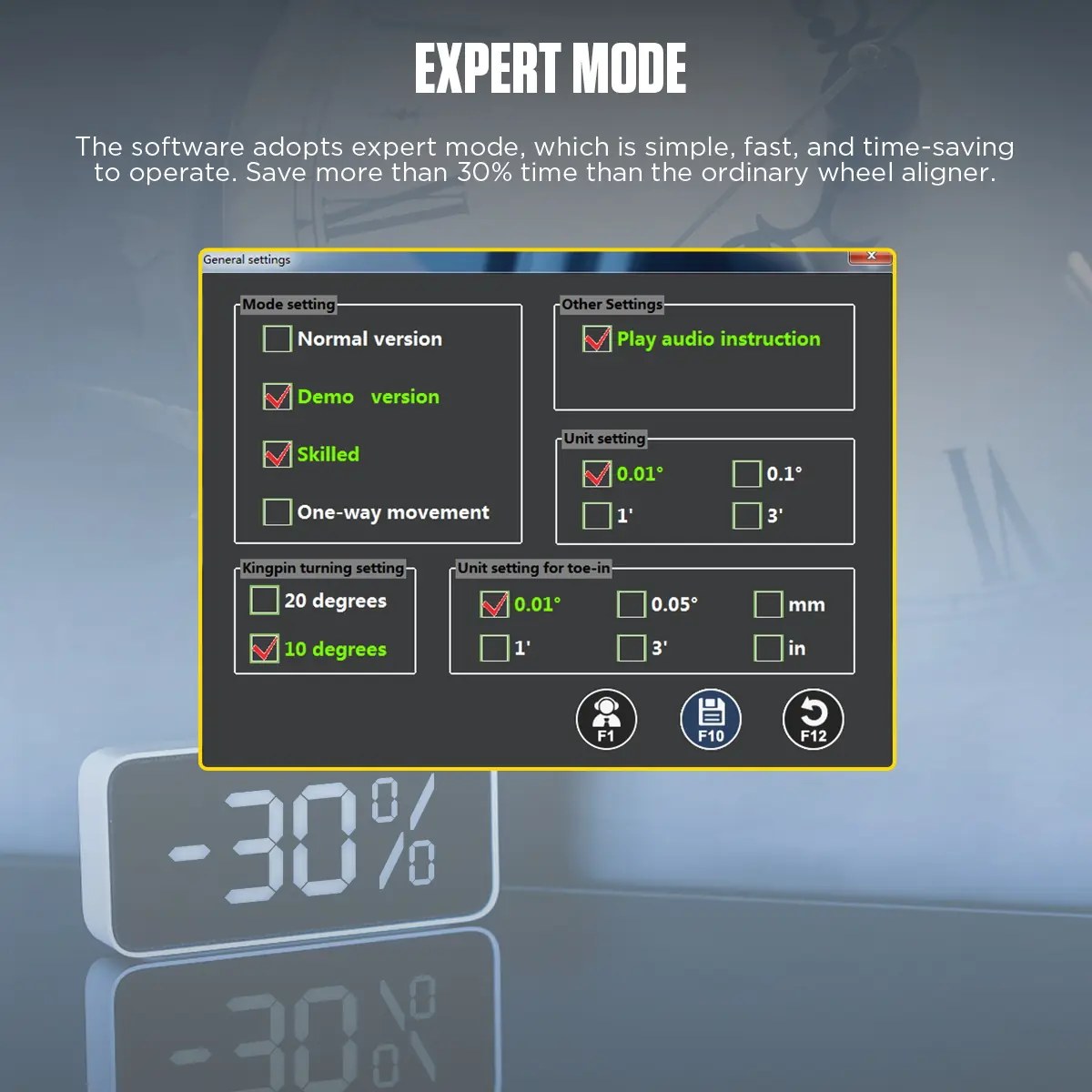
Synchronized voice prompts and LED indicators direct each setup and measurement step; expert mode shortens routine jobs for trained technicians.
-
Traceable Reports
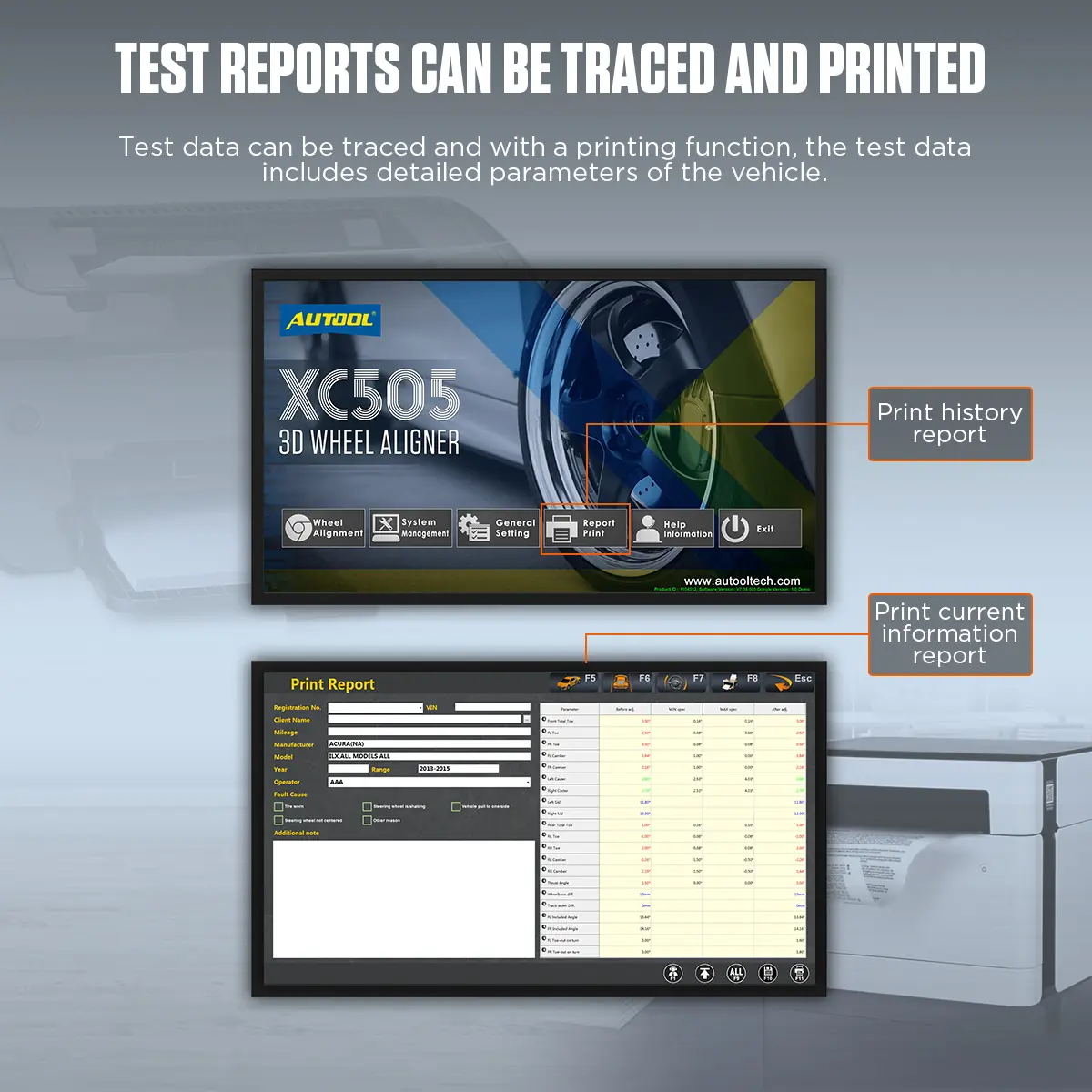
Review earlier measurement data and print before-and-after reports.
More Specifications
| Display | 1 × 32-inch |
|---|---|
| Lighting condition | No direct infrared light on the targets |
| Interface languages | Chinese, English, Spanish, Russian, German, Farsi, Arabic, Lithuanian, Japanese, French, Thai, Portuguese, Korean |
| Factory calibration | Calibrated before shipping; install and use per the setup guide |
Model Comparison
| XC503 | XC505 | XC508 | |
|---|---|---|---|
| Camera mount | Fixed column | Mobile cabinet | Auto lift-height tracking |
| Displays | 1 | 1 | 2 |
| Built-in printer | No | No | Yes |
| Drawer | No | Yes | Yes |
What’s in the Box
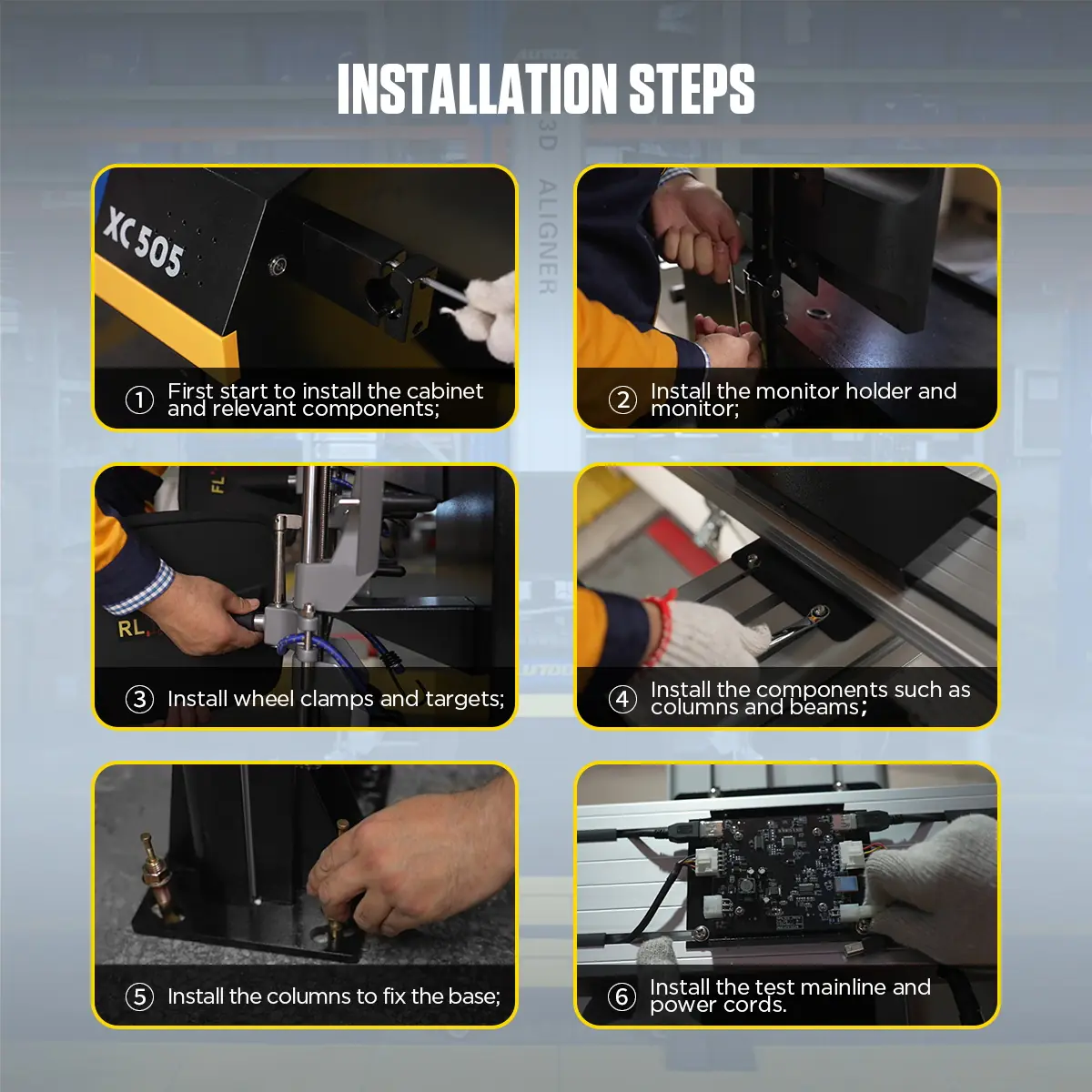
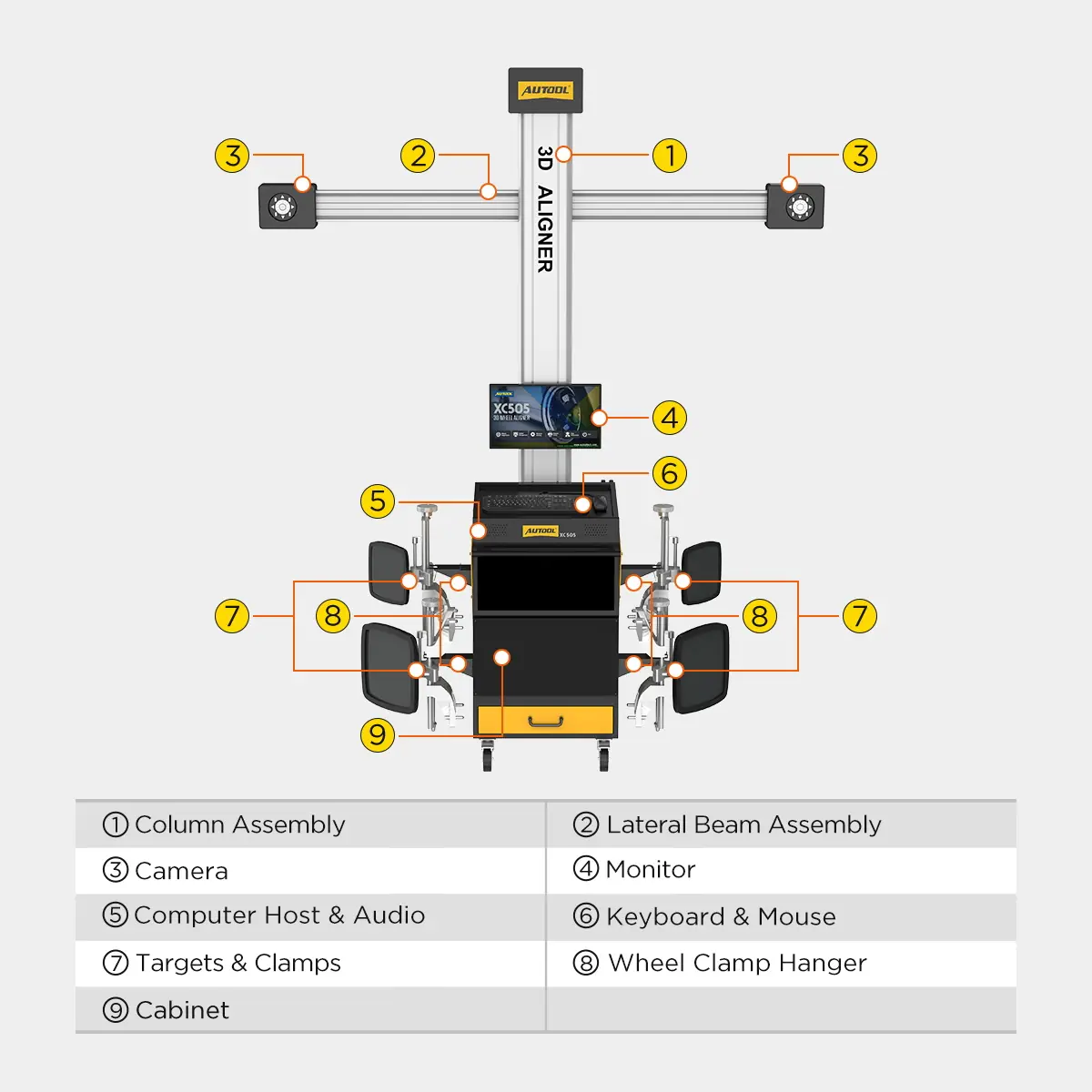
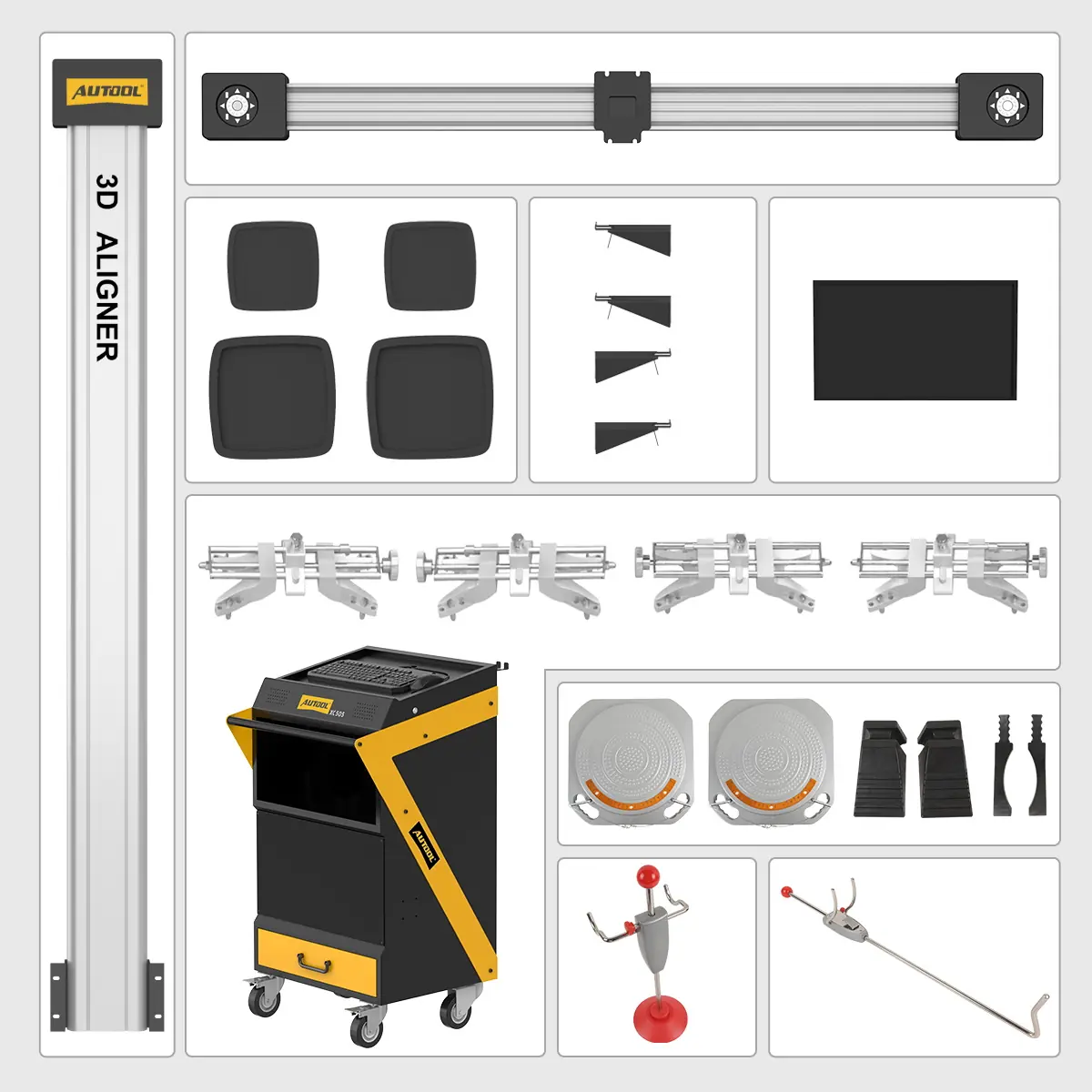
- Column assembly, lateral beam assembly and mobile cabinet
- Camera modules, monitor, computer host, audio, keyboard and mouse
- Targets, wheel clamps and wheel clamp hangers
- Turntables, wheel chocks, steering wheel holder, brake pedal tools and accessories
How to Use
- Qualify the bayConfirm lift or pit geometry, turn and slip plates, rolling space, target sightline, power and lighting.
- Inspect and identifyCheck tires, pressures, suspension, ride height and load, then select the exact vehicle, year and specification.
- Mount clamps and targetsCenter them on clean wheel surfaces and keep every target visible to the cameras.
- CompensateRoll the vehicle to complete run-out compensation before using the readings.
- Measure and adjustRead the applicable angles, start from the rear axle to set the thrust line, then adjust the front.
- Remeasure and reportRepeat the measurement, check steering-wheel position and save or print the report.
Setup, measurement and troubleshooting: XC505 user manual (PDF)
Good to Know
Caution
- Requires a stable, level bay with a qualified lift; software cannot compensate for an unsuitable surface. Confirm workshop space and installation dimensions before ordering.
- SAS, EPAS or ADAS calibration after alignment needs separate equipment.
- No built-in printer; printing needs an external printer setup.
- For 24-inch wheels, confirm clamp and rim fit before ordering.
Care
- Check clamp contact, target condition and mounting before every measurement.
- Follow the verification or calibration requirements after installation, moving, impact or repair.
FAQ
Does the order of adjustment matter?
Yes. Start at the rear to establish the geometric centerline and thrust line, then move forward. Incorrect thrust affects the other measurements.
What should I check if the computer cannot boot?
Check the computer power supply, confirm the power buttons on both the host and monitor are pressed, look for a flashing indicator LED, and check the monitor brightness and contrast.
What should I check if the printer does not work?
Check the printer power, its signal cable to the computer host and linked mode, then the printer driver and settings, and finally whether the computer has a virus or software issue.
What should I check if the mouse or keyboard does not work?
Check its connection to the computer host, its compatibility with the host, and whether the device itself is faulty.









 English
  Deutsch
  Español
  Nederlands
  Français